LinkedIn outreach with Saleio
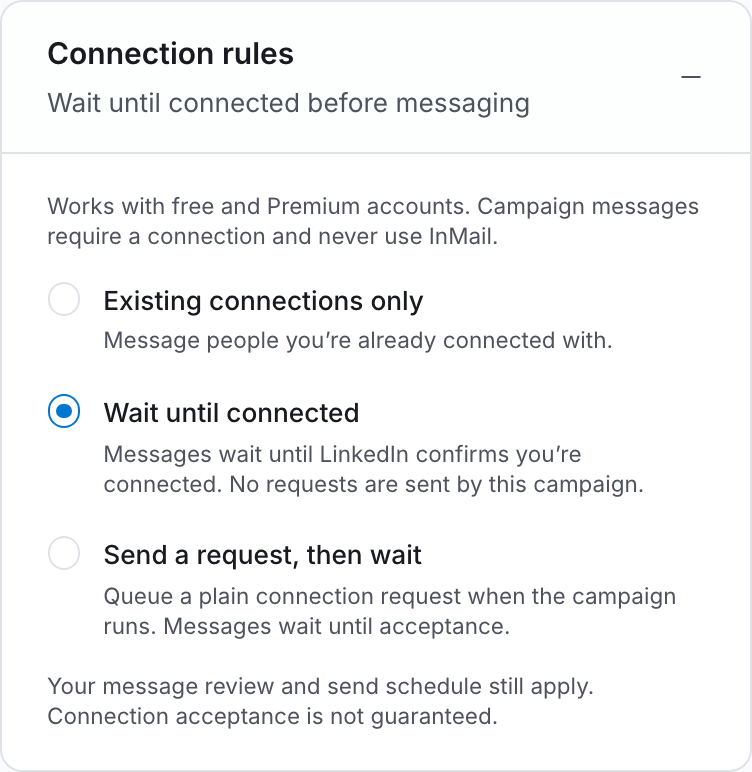
Campaign DMs go to confirmed connections. If connection requests are available for your account, Saleio can send an invitation and wait for acceptance before messaging.
Connect in desktop Chrome. After setup you can manage replies on mobile.
How a campaign works
Connect your account
Open LinkedIn in desktop Chrome. From Saleio Accounts, use the Saleio Connect extension to connect your signed-in account.
Choose who to reach
Add LinkedIn profile URLs or upload a CSV. Message existing connections, or choose a connection-first campaign when that option is available.
Review and launch
Turn on first-message review to check each opener. After the person connects, an approved message can send during your scheduled hours. A reply stops their follow-ups.
LinkedIn outreach questions
Do I need LinkedIn Premium?
A free LinkedIn account can send ordinary messages to connections. InMail is a separate option in the inbox when LinkedIn offers it for that recipient and your account has any required credits.
What happens while a request is pending?
The person stays in Waiting for connection. Saleio checks for acceptance and skips another invitation if a request is already pending or you’re already connected.
How many LinkedIn accounts can I connect?
Your account allowance is 1 on Free, 1 on Starter, 3 on Pro, and 5 on Business. Compare plans.
Can I attach a PDF?
When PDF sending is available, attach one PDF up to 20 MB to your inbox message. Saleio scans the file before sending.
Can LinkedIn restrict my account?
Yes. LinkedIn decides whether to limit, suspend or ban an account. Review your campaign settings and the Terms of Service before you connect.
More questions? help@saleio.ai